
How to Recover Data from a Corrupted USB flash: Easy USB Data Recovery Step-by-Step Guide
Your USB flash drive looks fine, but Windows suddenly says “Drive not accessible” or asks you to format it. Before you panic or click “Format disk,” know this: your files may still be there. This step-by-step guide explains what causes corruption, what mistakes to avoid, how to recover USB Flash data, and how to fix it once your files are secured.
Key Takeaways
- A corrupted USB flash does not always mean your files are lost, and the data may still be recoverable.
- Avoid formatting, writing new data, or running CHKDSK before recovery to prevent permanent data loss.
- Use a USB flash recovery tool to safely scan, preview, and recover files from corrupted or inaccessible USB drives.
- After recovering your data, repair the USB flash using CHKDSK or formatting methods.
- Prevent future corruption by safely ejecting drives, avoiding interrupted transfers, and keeping backups.
Part 2: Why Does a USB flash Become Corrupted?
USB flash corruption is usually the result of how the drive was used (or mistreated) over time. A few causes show up again and again:
- Improper Removal: Removing a USB drive while it is still transferring files can interrupt the write operation and damage the file system, even if the transfer appears complete.
- File System Errors: The drive’s file system tracks where files are stored. If it gets corrupted, the drive may show errors, such as RAW format or 0 bytes, or prompt you to format it.
- Malware or Viruses: USB drives can carry malware that may hide files, change folders into shortcuts, or damage the drive’s file structure.
- Physical Damage: Drops, water, static, or long-term wear can damage the USB hardware, causing the drive to stop working or fail to be detected.
- Data May Be Inaccessible: In many cases, the files are still on the drive. The problem is that the computer cannot properly access or locate them.
Part 3: When Data Loss Happens: The Critical First Steps
The choices you make in the first few minutes after noticing a corrupted drive matter more than almost anything else in the recovery process. Flash memory doesn’t erase a file the moment it becomes inaccessible. But it will overwrite that data the next time the drive is written to. Your goal right now is to prevent any new writes. Here’s how you can fulfill it:
- Stop Using the Drive: Avoid opening, copying, or adding files. New data can overwrite lost files, making recovery harder.
- Do Not Format the Drive: Formatting may damage file records and reduce the chances of recovering your data.
- Avoid CHKDSK for Now: CHKDSK repairs the file system by changing data structures, which may remove important recovery information.
Note: The correct sequence is to recover data first with a USB flash drive data recovery tool, then repair. Once your files are safely copied elsewhere, CHKDSK or formatting becomes a safe option because there’s nothing left to lose.
Part 4: The Safe & Reliable Solution: Recover Your Data with 4DDiG
4DDiG Windows Data Recovery is built for media, including USB flashs that are corrupted, inaccessible, RAW, or throwing format errors, where the files are still physically present. But the file system can’t point to them anymore. The tool can recover USB flash data whether the drive is prompting a format, is showing as 0 bytes, or has simply stopped mounting correctly after a bad ejection. Here’s what 4DDiG offers:
Main Features of 4DDiG:
- Read-Only and Safe: Scans and recovers files without writing to the corrupted USB flash, preventing data overwriting during recovery.
- High Success Rate: Built on 16+ years of data recovery engineering and designed to recover data from deletion, formatting, corruption, RAW drives, and partition loss.
- Wide Device Support: Supports numerous internal/external storage media, including USB flashs, SSDs, HDDs, drones, digital cameras, SDs, etc.
- Broad Support for Files: Recognizes 2,000+ file types, including documents, spreadsheets, photos, videos, and compressed files.
- Wide File System Compatibility: Supports NTFS, FAT32, exFAT, and FAT16 file systems.
- Free Preview: Allows you to preview recovered files before restoration.
- AI-Powered Repair: Repairs partially damaged photos and videos, making recovered files usable again.
Step-by-Step Guide to Use 4DDiG:
Here’s how to recover data from corrupted USB flash with 4DDiG:
Step 1: Download and install:
Get 4DDiG Windows Data Recovery from the official Tenorshare page and install it on your computer.
Step 2: Connect and select:
Plug in the corrupted USB flash to your computer. Even if Windows shows an error or asks you to format it, 4DDiG can still detect and list it under the available drives on the home screen. Select it as the scan location.
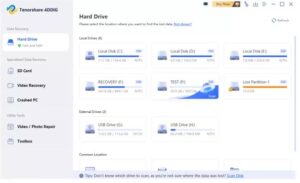
Step 3: Scan the drive
Choose the file types to scan. Click to start scanning. You can run a combination of quick and deep scans. 4DDiG checks the file system layer first before moving into a sector-by-sector scan that looks for file signatures directly. This is what allows it to find files even when the drive’s own index is damaged.
Step 4: Preview and recover:
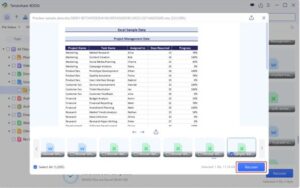
Once the scan finishes, you can filter results by file type, path, tags, and keywords. Select the files you need and save them to a different drive, such as your internal hard drive, another USB stick, or cloud storage. Never recover files back onto the same corrupted USB flash.
Part 5: Additional Fixes: How to Repair a Corrupted USB flash
Now that your data is safely recovered elsewhere, you can turn to actually repairing the USB flash so it’s usable again. Here are the two methods you can employ:
Method 1: Run CHKDSK
CHKDSK is best for USB flash drives with file system errors that Windows still detects but shows as access errors, rather than for drives that are completely undetected. Here’s how to fix corrupted USB drive without formatting with CHKDSK:
Step 1: Connect your USB flash to your computer. Type “cmd” in the Windows search bar.
Step 2: Right-click “Command Prompt” and execute it with admin privileges.
Step 3: Type the following command and hit “Enter” afterward:
- chkdsk X: /f /r (replace X with your USB flash’s letter).
Step 4: Let the scan run. It will check for and attempt to fix file system errors and bad sectors. Step 5: Once complete, reconnect the USB flash to confirm whether it mounts normally.
Method 2: Format the Drive
When CHKDSK can’t repair it, or the USB flash needs to be reset to a clean, usable state after recovery, formatting is the best option. Here’s how to format it:
Step 1: Connect your corrupted USB drive to your computer. Open “File Explorer,” right-click the drive, and select “Format.”
Step 2: Choose a file system. exFAT is good for drives you’ll move between Windows and Mac, and NTFS suits Windows-only use with larger files.
Step 3: Leave “Quick Format” checked for a healthy drive, or uncheck it if you want Windows to also scan for bad sectors during formatting.
Step 4: Click “Start” to complete the format.
Important reminder: Both of these methods are safe to run only after you’ve recovered everything you need. Used beforehand, either one can make recovery significantly harder or impossible.
Part 6: Prevention & Conclusion
A USB flash that gets corrupted once is more likely to get corrupted again. This is especially true if the underlying cause is a bad ejection habit, an aging drive, or a recurring malware source. But some prevention measures can prevent the drive from getting corrupted again:
- Safely Eject the Drive: Always use “Safely Remove Hardware” before unplugging, especially after transfers.
- Scan for Viruses: Run regular virus checks on USB drives used across multiple computers.
- Keep Backups: Store important files in a second location, such as cloud storage or another drive.
- Avoid Interrupting Transfers: Do not unplug the drive while files are still being transferred, even if it appears complete.
Summary
A corrupted USB flash or “You need to format the disk” error does not always mean your files are lost. Stop using the drive, avoid formatting or running CHKDSK, and first recover USB flash data with a read-only tool like 4DDiG Windows Data Recovery.
It can successfully retrieve files from corrupted, formatted, and RAW storage media and offers selective recovery and a preview of recovered files before restoration.
So, download 4DDiG Windows Data Recovery and start recovering your crucial files from your corrupted USB flash today.