A few years ago, I thought driver updates were something only IT professionals cared about. As long as my PC could boot and launch my favorite applications, I assumed everything was fine.
However, I gradually started noticing small but annoying issues. Sometimes my Bluetooth headset would randomly disconnect. My Wi-Fi connection became unstable after Windows updates. A few games suffered from unexpected FPS drops, and occasionally my printer would stop responding for no obvious reason.
None of these problems were serious enough to make me panic, but together they affected my productivity and overall experience. What frustrated me the most was that I often discovered the cause only after the problem had already appeared. In many cases, outdated drivers were responsible. That’s when I decided to try Driver Booster from IObit.
What Is Driver Booster?
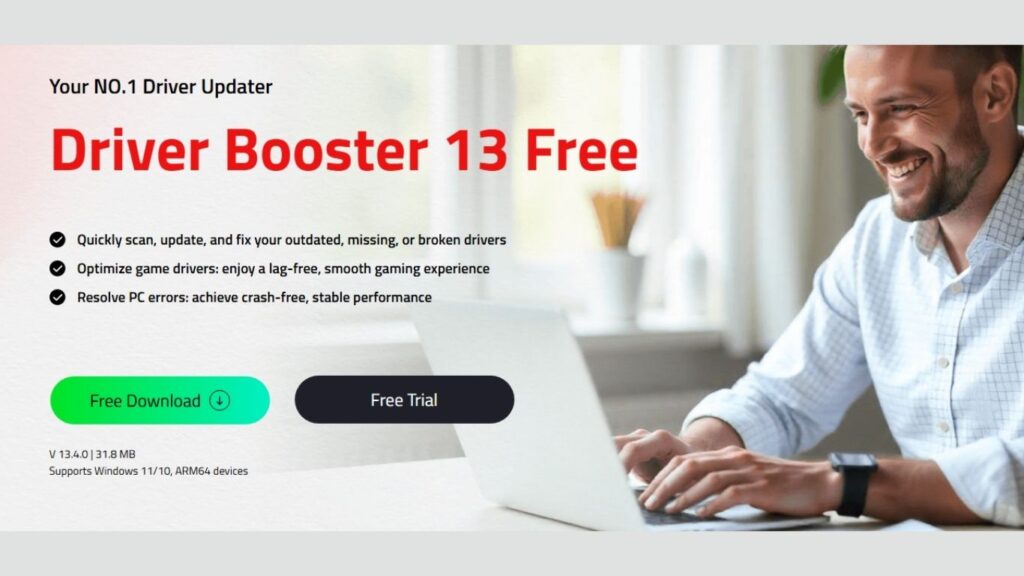
Driver Booster is a driver update tool designed to scan, download, and install updated drivers for Windows PCs. Instead of manually checking every hardware manufacturer’s website, it automatically identifies outdated, missing, or faulty drivers and helps keep them up to date. According to IObit, Driver Booster supports millions of device drivers and game components, making it suitable for both everyday users and gamers.
The main reason I was interested in Driver Booster was its focus on prevention rather than repair. Instead of waiting for hardware issues, crashes, or compatibility problems to occur, I wanted a tool that could help me avoid them in the first place.
The Features That Made the Biggest Difference
After using Driver Booster for several months, a few features stood out to me.
1. One-Click Driver Scanning
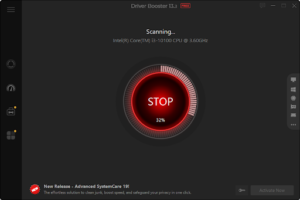
The first thing I noticed was how simple the process was. After launching the software, I clicked the Scan button and it quickly identified outdated drivers on my system. I didn’t need to search through Device Manager or check multiple manufacturer websites.
For someone who manages several devices and peripherals, this saved a significant amount of time.
2. Massive Driver Database
One of Driver Booster’s strongest advantages is its large driver database. The latest versions support 12 million of drivers and continue to receive updates. This means it can often find drivers for older or less common hardware that are difficult to locate manually.
I was surprised to see updates available for devices I hadn’t thought about in years, including chipset components and network adapters.
3. Safe Driver Updates
Whenever I update drivers, my biggest concern is stability. Driver Booster addresses this by creating restore points and providing backup and rollback options. If a newly installed driver causes issues, it’s possible to revert to a previous version.
This feature gave me much more confidence when updating important drivers.
4. Automatic Download and Installation
The Pro version can automatically download and install drivers, reducing manual work. Instead of spending time searching for updates individually, I could simply let the software handle the process.
For busy users, this automation is extremely convenient.
5. Gaming Optimization
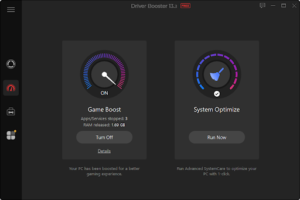
As someone who occasionally plays PC games, I appreciated Driver Booster’s game-related features. The software includes support for game components and gaming drivers, helping ensure that graphics drivers and related software stay updated. Some versions also include Game Boost functionality designed to improve gaming performance.
After updating several graphics-related components, I noticed fewer performance inconsistencies in some of the games I regularly play.
6. Driver Fix Tools
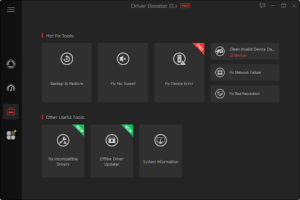
Another useful feature is the built-in tools section. Driver Booster includes utilities that can help fix common driver-related issues such as audio problems, network issues, or device recognition errors.
Fortunately, I haven’t needed these tools often, but it’s reassuring to know they’re available.
How I Use Driver Booster
My routine is actually very simple.
Step 1: Run a Scan
I usually open Driver Booster once every week or two and click the Scan button.
Step 2: Review the Results
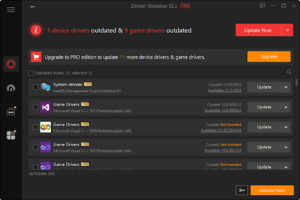
Instead of blindly updating everything, I take a quick look at the list of available updates. I pay particular attention to graphics drivers, network drivers, and chipset drivers.
Step 3: Create a Backup
Although Driver Booster automatically provides protection mechanisms, I prefer to ensure a restore point exists before major updates.
Step 4: Update Drivers
I use the Update All feature when the updates look reasonable. The process is usually fast and requires very little interaction.
Step 5: Restart the PC
After completing important driver updates, I restart the system to ensure everything loads correctly.
Step 6: Monitor Stability
For the next day or two, I pay attention to system performance. In my experience, updates have generally been smooth and problem-free.
The Advantages and Disadvantages I Found
No software is perfect, so I think it’s important to discuss both the strengths and weaknesses.
Pros
- Very easy to use, even for beginners.
- Large driver database covering many devices.
- Saves time compared to manual driver searches.
- Backup, restore, and rollback options improve safety.
- Automatic updates reduce maintenance effort.
- Useful tools for fixing common driver-related issues.
- Helpful for gamers who want updated game drivers and components.
Cons
- Some advanced features require the Pro version.
- Like any driver updater, users should still be cautious with major hardware driver changes.
- Certain experienced users may prefer downloading drivers directly from hardware manufacturers.
Personally, I treat Driver Booster as a convenience tool rather than blindly updating every driver the moment an update appears.
Who Should Use Driver Booster?
Based on my experience, Driver Booster is particularly useful for:
- Casual users who don’t know where to find driver updates.
- Gamers who want to keep graphics and game-related drivers current.
- Users with older PCs containing multiple hardware components.
- People who frequently encounter audio, network, or device compatibility issues.
- Anyone who wants a simpler alternative to manually checking manufacturer websites.
On the other hand, highly technical users who prefer complete manual control may not need it as much.
My Final Recommendation
After using Driver Booster for an extended period, I can say that it has helped me reduce many small PC problems before they became major headaches. Instead of reacting to driver-related issues after they appear, I now take a more proactive approach to system maintenance.
Would I recommend Driver Booster?
Yes—especially for everyday Windows users who want a simple way to keep their drivers updated and avoid common PC problems before they happen. While it’s still important to use good judgment when updating drivers, Driver Booster has become one of the tools I regularly rely on to keep my PC running smoothly. If you’re looking for a reliable driver updater that can save time, improve hardware compatibility, and help prevent issues before they affect your system, Driver Booster is definitely worth considering.