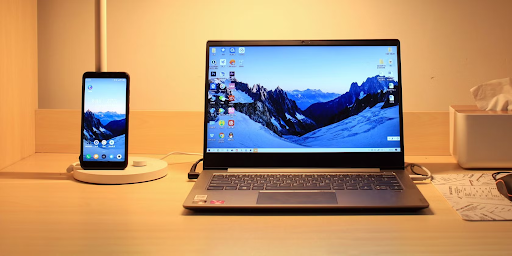
Remote desktop software makes it easier to access a computer when you’re away from your desk. Whether you want to check work files, open desktop applications, fix a PC, or play games from a distance, a phone can become a convenient way to interact with your computer. StarDesk is designed for this kind of cross-device access, allowing users to connect to Windows and other supported computers from their mobile devices.
If your main goal is to control Windows from your phone, the setup is fairly simple. You need to install the application on the computer you want to access and on the phone you’ll use as the client. Once both devices are linked to the same StarDesk account, the host computer should show up in the mobile app, ready for remote control.
What Is StarDesk?
StarDesk is a multi-platform remote desktop application meant for gaming, productivity, and remote assistance. It lets you control windows from phone, PC, or Mac from compatible devices, such as iOS, Android, macOS, and Windows. The platform is also optimized for low-latency streaming, making it ideal for situations that require quick and responsive control.
It can be especially helpful for people who keep a powerful computer at home or in the office but still need to access it while traveling. Instead of carrying the main computer everywhere, you can use your phone or another computer as a remote client.
How to Install StarDesk
Before you begin, decide which computer will act as the host. This is the Windows PC or Mac you want to control. Your phone, tablet, or another computer will serve as the client. You can install StarDesk by downloading the correct version for your devices from the official StarDesk download page. The available platforms include Windows, macOS, iOS, and Android.
Follow these basic steps:
Install on the host: Download StarDesk on the Windows PC or Mac you want to access and sign in with your account.
Install on the phone: Download the mobile version on your Android or iOS device and sign in using the same account.
How to Control Windows from Your Phone
Phones don’t have physical mice and keyboards, so remote-control software needs practical touch controls. Install StarDesk, which offers both Touch Mode and Cursor Mode. Touch Mode supports gestures like tapping, dragging, zooming, and scrolling, while Cursor Mode gives a more traditional PC mouse experience.
For more precise control, users can enable the virtual mouse. This provides options for left-click, right-click, scrolling, and middle-click actions. This is especially useful when using desktop applications that were designed for a traditional mouse. The mobile control panel also includes options like keyboard access, full-screen viewing, sound controls, and screen rotation.
What Can You Do After Connecting?
- Launch programs and access files remotely.
- Manage documents and Windows applications.
- Play PC games using supported controllers.
- Customize key mappings for easier controls.
- Transfer files between connected devices.
- Control multiple monitors when supported.
- Wake your computer remotely, depending on your setup.
Tips for a Better Remote Connection
StarDesk suggests using an Ethernet connection for the host device if possible, while a strong 5 GHz Wi-Fi, Wi-Fi 6, or a dependable mobile network can assist on the client side.
For intense gaming or high-resolution tasks, begin with a lower-quality setting like 1080p/60 and gradually increase the resolution or frame rate as your network allows.
FAQs
Can I control a Windows PC from my phone?
Yes. StarDesk allows Android and iOS devices to remotely control a Windows PC.
Which devices support StarDesk?
StarDesk is compatible with Windows, macOS, iOS, and Android.
Can I use StarDesk for gaming?
Yes. It supports remote gaming, game controllers, and customizable mobile key mappings.
Does StarDesk support 4K?
Yes. StarDesk can stream up to 4K at 144 FPS, depending on the setup.
Conclusion
Installing StarDesk can turn your phone into a convenient remote control for your Windows PC. After installing the app on both devices, signing in, and connecting to the host, you can access your desktop, applications, files, and games from a distance.
With support for 4K/144 FPS streaming, compatibility across iOS, Android, macOS, and Windows, and privacy features like Black Screen Protection and Mute Host Device, StarDesk offers a versatile solution for both work and entertainment. For anyone wanting to control a Windows PC from their phone, this provides an easy way to keep their main computer accessible without being physically present.