You uninstall a program and feel like the job is done. Weeks later, you notice its folder still sitting on the disk, its name buried in the registry, or its toolbar quietly living in your browser. Those ghost files are leftovers. They do not shout for attention, but together they eat up space, slow things down, and make Windows feel older than they are.
If you want a cleaner system, you need to remove those leftovers. IObit Uninstaller is the best uninstaller for Windows, designed to remove software completely. It removes programs, folders, registry entries, and other traces that standard uninstallers often miss.
What does a “leftover” actually mean on a Windows PC?
You’d think uninstalling a program would erase all traces of it, but that’s not really the case. Most apps leave little bits behind—sometimes in places you’d never look. Here’s what usually gets left over:
- Installation folders tucked away in Program Files or AppData
- Registry entries that still point to files that no longer exist.
- Startup items and background services are trying to run, even after you’ve deleted the app
- Old browser plug-ins or notifications linked to the program you thought was gone
- A few of these on their own don’t seem like much, but over time, they pile up and clutter your computer. That’s why it’s worth using a cleanup tool that actually removes them.
How IObit Uninstaller approaches the problem
IObit Uninstaller 15 Free is built for full cleanup, not just removing names from the installed programs list. From there, the tool works in 3 key stages whenever you remove software:
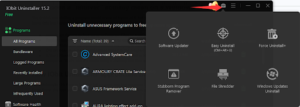
- Easy Uninstall: It triggers the program’s built‑in uninstaller, so Windows sees it as correctly removed.
- Force Uninstall: Uninstall programs that cannot be uninstalled in a routine way.
- Stubborn Program Remover: Unique database supports removing 4000+ stubborn programs
For apps that refuse to leave, Force Uninstall offers another option. You can choose the application’s icon, and let the tool force a complete uninstall when standard methods do not work.
Where does the leftover cleanup happen?
1: Programs and bundleware
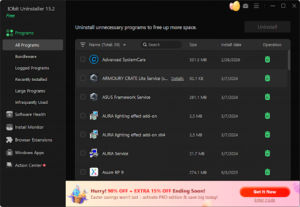
Under the main interface, IObit Uninstaller lists installed software and lets you remove unwanted items along with their associated files. This is where you clear hidden files, old tools you no longer use, and bundleware that comes with other installs. After each uninstall, IObit Uninstaller shows you any leftover folders and registry entries. That way, you can actually see what’s been missed and clear it out right away—instead of letting those bits pile up over time.
2: Browser plug-ins and toolbars
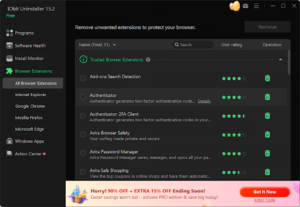
Not all leftovers are tucked away on your hard drive. Plenty of them show up as browser plug-ins, toolbars, or extensions that you might forget about.
IObit Uninstaller 15 can remove plug‑ins and toolbars to protect your privacy, and its enlarged database helps it recognize more malicious or unnecessary add‑ons in Chrome, Firefox, Edge, and Internet Explorer. It also includes Browser Notification Block to shut down annoying pop‑up notifications while you browse, which clears another kind of “leftover” that users forget about until it becomes a constant distraction.
3. Pop‑ups and notifications you never meant to allow
Disturbing Notifications is like a gentle reminder about all those pop-ups you’ve allowed—often without even realizing it. Just tick the option and let the scan run. Suddenly, you’ll see a list of every notification you’ve said yes to on Windows apps and websites.
The best part? With a single click, you can turn off those notifications across Chrome, Edge, Firefox, Opera, and Windows apps. It’s a quick way to clear out the digital noise you probably forgot was there.
4. Hidden residue in software health
The Software Health section acts like a check‑up for your installed programs. One scan can:
- Manage hidden software permissions.
- Block disruptive pop‑up notifications.
- Clean unnecessary setup files
- Remove malicious software and browser extensions.
This is where you handle the leftovers — old installers parked on the disk, silent extensions that never show up in daily use, and permissions you gave without thinking too much about them at the time.
A practical cleanup plan with IObit Uninstaller
Instead of cleaning randomly, you can run IObit Uninstaller as part of routine maintenance. Here is a simple plan that targets leftovers directly:
Step 1: Start with large and unused programs
Start by sorting your program list by size or by the install date—whichever makes it easier to spot the apps you rarely open. Uninstall the ones you no longer need. Then, let IObit Uninstaller scan for any leftover files, folders, or registry entries and clear them out, so nothing gets left behind.
Step 2: Tackle stubborn software
If an app refuses to uninstall or shows errors, then run Force Uninstall. Just click Force Uninstall, browse your PC, then choose the app you want to uninstall, and let the tool do the heavy lifting. It digs up every bit of leftover data, so you’re not left with pieces of old software cluttering your PC.
Step 3: Clean your browsers
Head to the browser extension and take a look at the toolbars and extensions there. If you spot anything you don’t recognize or never use, go ahead and remove it. While you’re at it, run the Browser Notification Block—this will help silence any pop-ups you may have accidentally allowed before.
Step 4: Run a Software Health scan
Give the Software Health feature a spin. It scans for things like hidden setup files, shady plug-ins, and permissions you probably didn’t even realize you’d granted. Just follow its recommendations, and you’ll cut down on digital clutter and boost your PC’s security all in one go.
Step 5: Repeat after big changes
Any time you finish a round of software testing or help clean up a family member’s PC, run through these steps again so new leftovers do not build a second layer on top of the first.
Why does this matter for everyday users?
Leftover files are not only a problem for “tech people.” They affect:
- Students and home users who install lots of tools for school, hobbies, and streaming.
- Remote workers and freelancers who test different work apps, meeting tools, and clients’ software.
- Shared family PCs that accumulate years of games, utilities, and browser junk from multiple accounts.
In all these cases, the problem is the same: software comes and goes, but pieces stay behind. Using IObit Uninstaller as your main uninstaller for Windows helps keep that cycle under control by pairing removal with leftover cleanup every time.
Conclusion
You do not always see leftover files, but you feel them. The system takes longer to start, storage fills up faster than it should, and the list of installed software looks more like a history of experiments than a toolset you actually use.
By focusing on complete removal, browser cleanup, notification control, and software health, IObit Uninstaller lets you reset your PC without wiping it. Instead of letting ghost files decide how your computer feels, you can actually put them in the bin where they belong.