
A lot of online trouble starts with a simple detail: your public IP address. It can be used to estimate your location, link activity across sessions, and help attackers aim spam, scams, or direct disruption at your connection.
Masking your IP does not solve every security problem, but it removes a common starting point for many attacks. That is where iTop VPN fits in, especially for everyday browsing on Windows, public Wi Fi, and region-restricted networks.
What iTop VPN is
iTop VPN for Windows is a VPN app that routes traffic through VPN servers and uses AES-256 encryption for data protection.
It is presented as a free VPN for Windows with fast data transfer, private access to websites, and global servers that can reach services blocked in a user’s country.
It also supports free VPN servers with unlimited bandwidth without registration, plus support across Windows, Mac, iOS, and Android.
How does masking your IP block common threats
Threat 1: IP-based tracking and profiling
Many sites and ad systems log IP addresses. When you connect to iTop VPN, a new IP address is assigned after you connect to a server, which helps reduce how often your real IP is exposed during browsing.
For users who prefer a stable IP for specific use, iTop VPN offers a dedicated IP in the US, UK, Canada, and Germany.
Threat 2: Interception on public Wi Fi
Public Wi Fi networks are common places for snooping. iTop VPN states it safeguards data with encryption to help prevent interception by ISPs, government monitoring, and third-party advertisers, which helps when browsing or logging in on shared networks.
It also describes building a safe tunnel without compromising transfer speed, which is useful when you need privacy and speed at the same time.
Threat 3: Leaks that bypass the tunnel
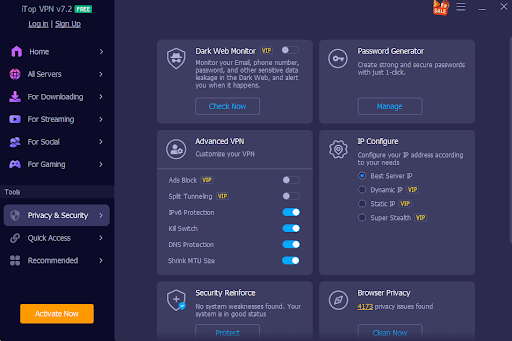
Some leaks happen at the browser or DNS layer. iTop VPN includes WebRTC leak protection to help prevent browsers from leaking public and private IP addresses.
It also lists DNS protection that prevents system DNS settings from being modified, reducing the risk of hijacking or spam.
Threat 4: Sudden VPN drops
A brief disconnect can expose traffic. iTop VPN includes a Kill Switch that stops internet traffic if the VPN connection switches off, then restores traffic after the VPN connection recovers.
Threat 5: Malicious ads and risky redirects
A lot of malware and phishing start with ads. iTop VPN includes an ad-blocking feature aimed at blocking malicious ads and reducing pop-ups while browsing.
Threat 6: Stolen accounts and reused passwords
If accounts get reused across sites, one leak can create a chain reaction. iTop VPN includes Dark Web Monitor that scans dark web sites for leaked information and alerts users when their email, phone, or other information is detected.
It also includes a password generator that creates strong passwords with uppercase, lowercase, digits, and symbols, plus password history with remarks.
iTop VPN features (Windows page checklist)
This section lists the feature set from the official Windows page in a clean way, so readers can map each feature to a real task.
- Core Protection:
- Total Privacy: strict No Log Policy, AES-256 encryption, and advanced leak protection.
- Double the Safety: “Double VPN” routes traffic through two servers; Kill Switch ensures you’re never exposed.
- Clean Browsing: Built-in ad blocker and auto-history cleaning for a distraction-free experience.
- Performance & Power:
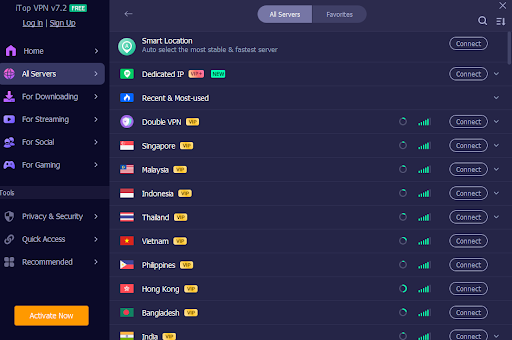
- Global Reach: 3,200+ servers across 100+ locations with no speed throttling.
- Customizable: Supports Split Tunneling, IPv6, and multiple IP types.
- Optimized for Gaming: dedicated Game Booster reduces lag in games like PUBG
- Everywhere You Are:
- Connect More: Support for 8 simultaneous devices, including Windows on ARM.
- Whole-Home Coverage: Easily connects game consoles (Xbox/PS/Switch) via LAN proxy.
- Always There: 24/7 support and effortless integration.
How to use iTop VPN on Windows (simple setup)
Step 1: Download and install
Go to iTop official page and download iTop VPN for Windows.
Install by double-clicking the setup file, then open the app.
Step 2: Connect and mask your IP
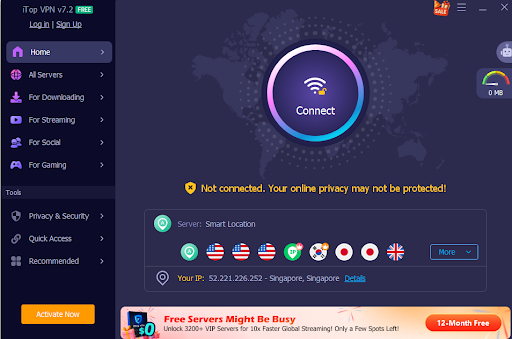
Click to connect to a VPN server. The page describes connecting to VPN on Windows after installation as the third step.
If you want a stable identity for a specific task, select a dedicated IP option in US, UK, Canada, or Germany.
Step 3: Turn on the defenses that match your browsing
- For drop protection, enable Kill Switch.
- For browser leak reduction, keep WebRTC leak protection active.
- For DNS integrity, use the DNS protection feature that blocks DNS settings modification.
- For cleaner browsing sessions, enable Auto Clean to clear browser traces and cookies.
- For ad risk reduction, use the malicious ad blocking feature.
Step 4: Pick protocols and routing that fit the network
If a network blocks VPN traffic, switch protocols between TCP, UDP, and HTTPS.
If only one app needs the VPN, use split tunneling so other apps stay on the local internet.
Step 5: Make it automatic
Enable launch on startup so the VPN can start with Windows.
Conclusion
IP masking is a practical way to reduce exposure to tracking, leak paths, public Wi Fi snooping, and connection-targeted disruption. iTop VPN backs that up with encryption, server coverage, protocol choices, Kill Switch, leak protections, Auto Clean, ad blocking, Dark Web Monitor, and password tools on Windows.